Creating a Work Order
If you notice a problem or need maintenance assistance, you can report it by creating a workorder. Just describe an issue, attach photos if needed, and choose when you want the work done. Follow the steps below to make sure your request is sent and handled quickly.
To Create a Work Order:
-
Click Add Work Order button in the middle of the page.

-
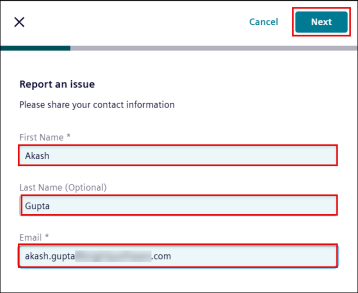
Enter your contact information and click Next:
-
First Name
-
Last Name (Optional)
-
Email address
-
-
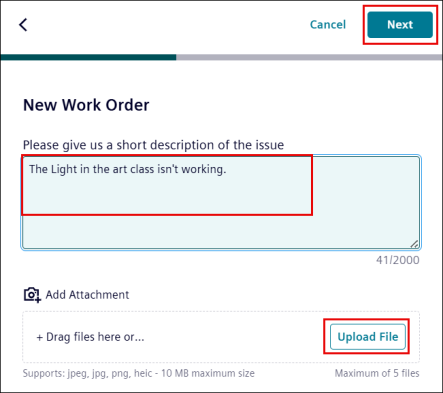
Enter the short description of the issue, for example, ‘The light in the art class isn’t working’.
-
Under Add Attachment, click Upload File button to add image.
You may drag and drop to add attachments.
NOTE You can only add supported files type: .jpeg, .jpg, .png, and. heic (Maximum size:10MB, up to five files).
5. Click Next.
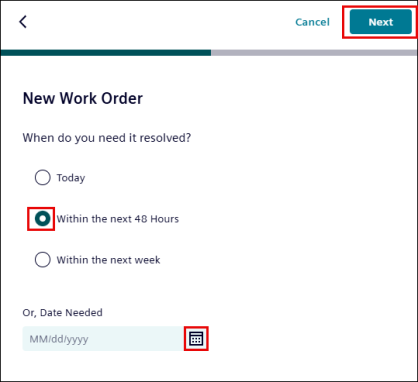
6. Under When do you need it Resolved?, select an option or choose date using the calendar icon.
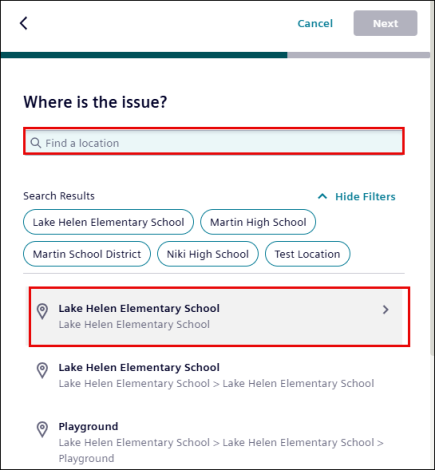
7. Enter and select the location from the provided list.
8. Review all entered details.
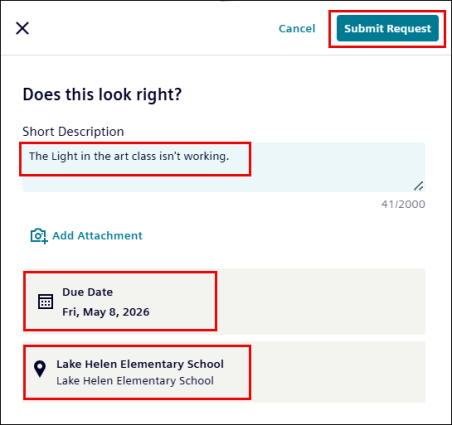
9. If you want to make changes or updates, click the field you want to change or update.
Example: To change the Due date from the 05/08/2026 to 05/29/2026.
-
Click Due date field.
-
Select the new date from the calendar.
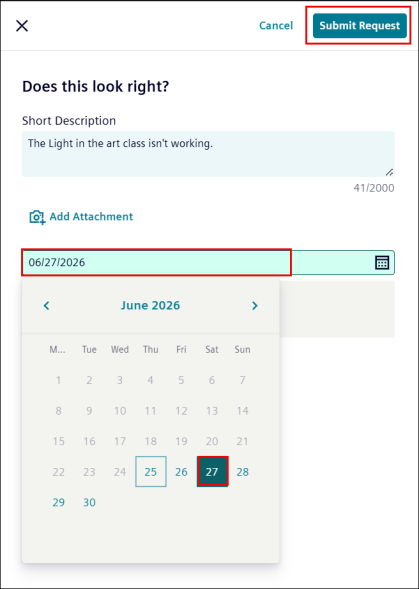
10. After making all changes, click Submit Request.
